Choose settings by what you want to do.
Do not enable everything. Start with one working file, choose a processing mode, then add one protection change at a time. After each change, run the same application tests.
Version: all three screenshots show the actual WinUI 3 app, v3.4.15. Classic v2.47 has a different interface.
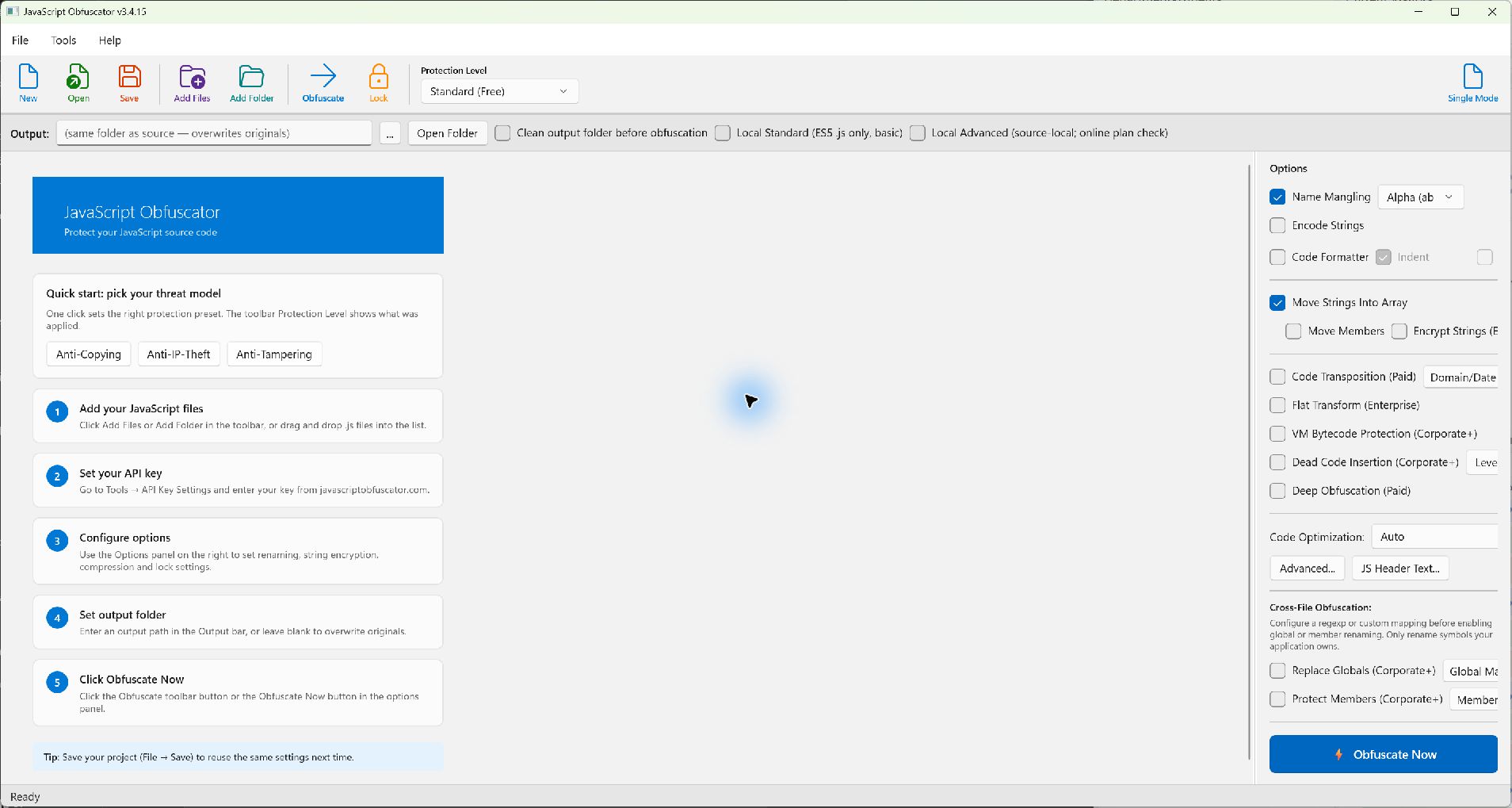 Actual v3.4.15 application, empty project; no customer files or credentials shown. Top toolbar: project and batch actions. Below: output folder and processing mode. Right: protection options. Open the image for a larger view. Screenshot settings are not a recommendation to copy every checkbox.
1. Decide where your source is processed
- Find the mode checkboxes beside the Output: bar.
- Choose one processing route before adjusting transformations.
- Use a separate output folder. A blank output can overwrite original files.
Local Standard: basic offline ES5 protection
- What it does
- Basic identifier protection for supported ES5 .js files on your computer.
- Where
- Output bar → Local Standard (ES5 .js only, basic).
- When
- Use for a first offline test without credentials. It does not apply advanced paid options, modern-syntax conversion or VM protection.
Local Advanced: keep source on the computer
- What it does
- Protects supported source locally, after an online plan and option check.
- Where
- Output bar → Local Advanced (source-local; online plan check).
- When
- Use for supported modern or mixed-file projects with eligible paid features. It is not fully offline and does not include VM bytecode protection.
Hosted protection
- What it does
- Sends selected source to the hosted service.
- Where
- Leave both local-mode checkboxes off. Review the selected plan/options before running.
- When
- Use when the hosted workflow is acceptable for your source. Read source handling first. A preset called Standard is not the Local Standard processing mode.
2. Make names and strings harder to read
Start in the right-hand Options panel. Protect one file before enabling more settings.
Name Mangling
- Purpose
- Replaces eligible identifiers with less readable names.
- Where
- Options → Name Mangling; the adjacent dropdown chooses the naming style.
- When
- Start here. Test code that uses names dynamically. Public names and reflected properties may need exclusions.
Encode Strings / Move Strings Into Array
- Purpose
- Changes how literal strings are represented or collected. This is not secure storage for passwords or API keys.
- Where
- Options → Encode Strings; Options → Move Strings Into Array.
- When
- Add after the baseline works. Compare output size and startup cost.
Move Members / Encrypt Strings
- Purpose
- Additional member-string handling and string protection.
- Where
- Options → Move Strings Into Array, then its Move Members / Encrypt Strings controls.
- When
- Use only where your mode and plan support the option. Start with string movement, then test one additional change. Do not rename public object properties by assuming Move Members is the same as member renaming.
3. Add stronger transformations carefully
First try a Protection Level preset in the top toolbar. Paid labels identify eligibility, not a recommendation to enable everything.
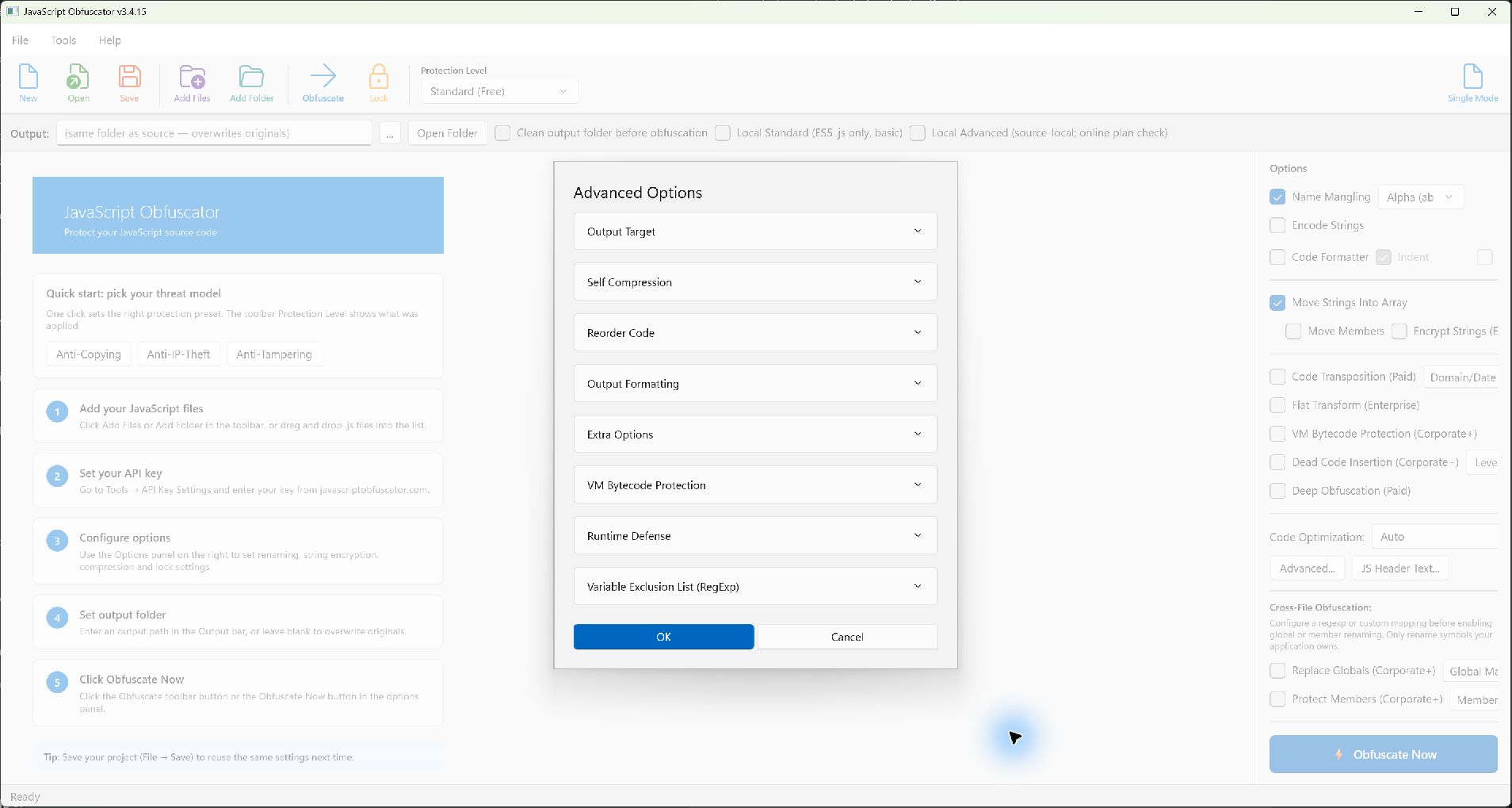 Click Advanced… in the right-hand Options panel. Expand the group you need; do not turn on every option. Choose Cancel to leave without applying changes. These group names were verified in the actual v3.4.15 window.
Deep Obfuscation / Code Transposition / Flat Transform / Dead Code
- Purpose
- Changes code structure or introduces additional complexity to increase analysis effort.
- Where
- Right-hand Options panel → the named checkbox. Dead Code also has a Level dropdown. Advanced… → Reorder Code exposes related controls.
- When
- Only after functional tests pass with conservative settings. Enable one additional transformation, rerun tests, and measure startup and interaction time. Some transforms depend on other settings or are unavailable in local basic mode.
VM Bytecode Protection
- Purpose
- Uses a virtual-machine execution path for selected functions.
- Where
- Options → VM Bytecode Protection; Advanced… → VM Bytecode Protection for its configuration. See the VM guide before selecting functions.
- When
- Only after confirming eligibility and enrollment. VM uses hosted processing, not Local Advanced. Avoid hot loops and measure performance; a plan purchase alone does not prove access or application suitability.
Self Compression
- Purpose
- Packages protected code with a decoder to reduce size when beneficial.
- Where
- Options → Advanced… → Self Compression.
- When
- Use if eligible and transfer size matters. Test the decoded program and startup cost. Version 3.4.15 avoids using compression when the complete result would be larger.
4. Restrict where or when code runs
- Enable Code Transposition (Paid): the lock dialog requires it for lock options to apply.
- Click Lock in the toolbar, or Domain/Date Lock in Options.
- Expand Domain Lock or Date Lock (Expiry), then configure the permitted domains or expiry date.
- Test an allowed deployment and a deliberately disallowed deployment before release.
Use this for distribution restrictions, not as a replacement for server-side login, payment checks or authorization. Check staging hosts and expiry behavior before shipping. Choose Cancel to leave the dialog without applying changes.
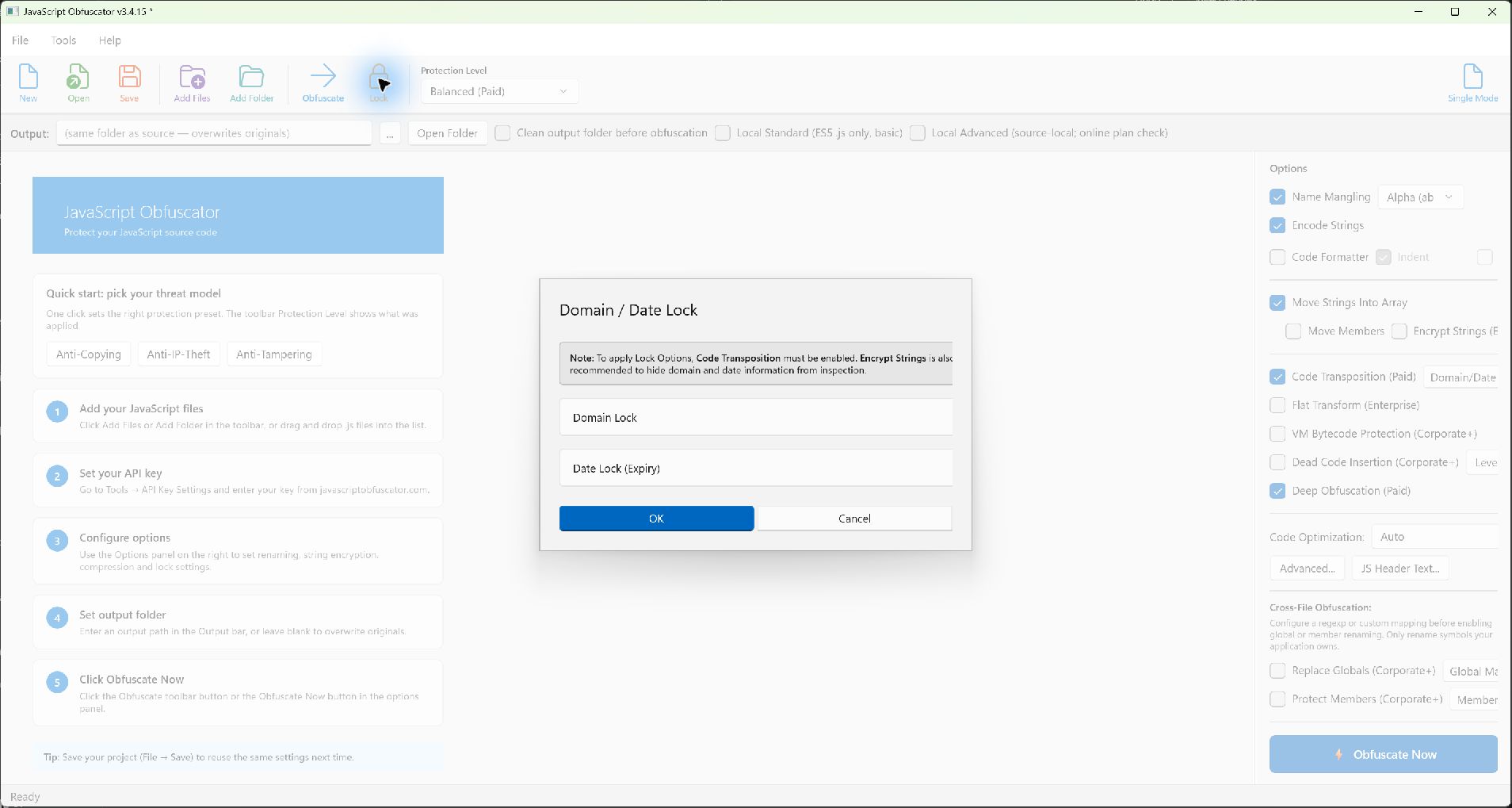 Actual v3.4.15 lock dialog, opened from the toolbar Lock button. Expand only the restriction you need. No domain or expiry date was configured for this screenshot.
Runtime Defense: debugger and integrity checks
- Purpose
- Detects selected debugging or code-integrity conditions and applies the configured response.
- Where
- Options → Advanced… → Runtime Defense.
- When
- Only after testing with your browser tools, monitoring SDKs and supported environment. Do not enable during normal debugging. False detections or an unsuitable response can interrupt legitimate users.
5. Keep your application working
Variable exclusions / Global Mapping / Member Mapping
- Purpose
- Preserves or controls names used across files, public APIs, reflection or integrations.
- Where
- Advanced… → Variable Exclusion List (RegExp); Options → Cross-File Obfuscation → Global Mapping… / Member Mapping….
- When
- Use when your code depends on a specific public name. Do not enable Replace Globals or Protect Members for an entire third-party library without a reviewed mapping and tests.
Output Target / Code Optimization
- Purpose
- Chooses the intended output syntax or runtime optimization target.
- Where
- Advanced… → Output Target; Options → Code Optimization.
- When
- Match the environments you actually support. ES5 syntax does not provide missing browser APIs or certify old-browser compatibility. The new local ES5 preparation checkbox is not documented here as a released feature.
Code Formatter / Output Formatting
- Purpose
- Controls output readability and formatting, not a security boundary.
- Where
- Options → Code Formatter, Indent, //Line; Advanced… → Output Formatting.
- When
- Use for inspection or specific formatting requirements. Do not interpret compact or visually scrambled output as proof that the application is secure.
After changing a setting, follow the application test checklist. If something breaks, disable the last change rather than adding more transforms.
6. Reuse the tested settings for the whole project
- Build the application with its normal bundler first.
- Use Add Files / Add Folder, check file actions and choose a separate Output folder.
- Save Project as a .jsoproj file and protect the batch.
- Run application tests against the complete protected output.
- Reuse the saved project through the bundled cli\jso-local.exe.
Follow the complete desktop → batch → command-line walkthrough. Keep credentials in your build system's secret store, not the project or script.