The command-line workflow runs JavaScript Obfuscator with no window, using the project settings you already configured in the desktop application. It is built for repeatable, scripted builds — the obfuscator protects every enabled file in the project and returns an exit code your build step can branch on.
Typical workflow
- Create a project in the desktop app and add the files you want to protect.
- Configure the protection options in the GUI and confirm the API key under Tools > API Key. Credentials are stored in the current Windows user’s DPAPI-protected settings, not in newly saved project files.
- Save the project (it is written as a
.jsoproj file). The command line reuses this file.
- Open Tools > Command Line, tick the options you want, and copy the generated command.
- Paste the command into a script, scheduled task, or CI/build step.
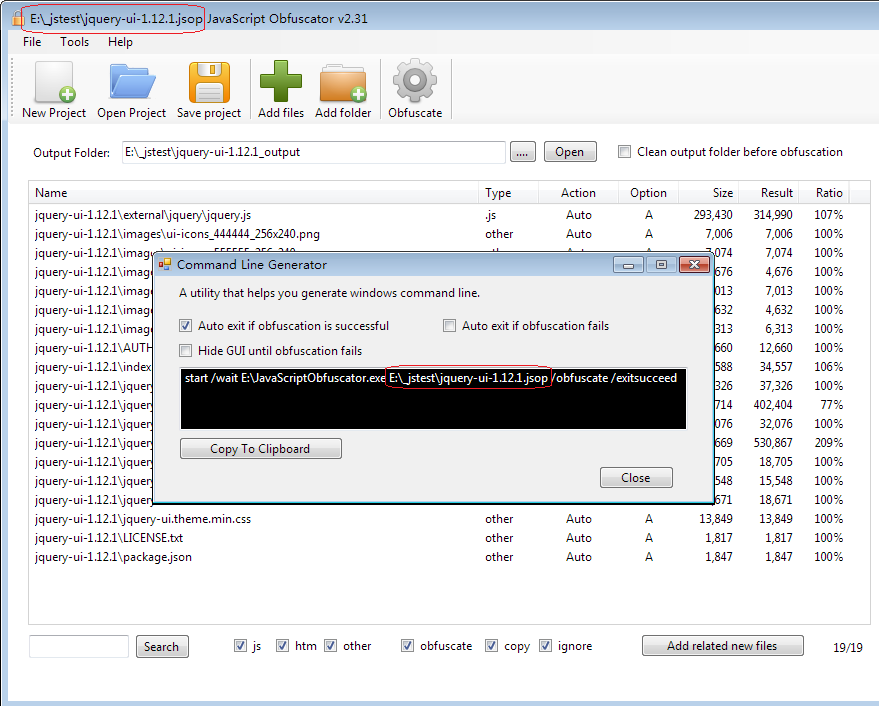
Anatomy of the command
The dialog generates a command in this shape:
start "" /wait "C:\path\to\javascriptobfuscator.exe" "C:\path\to\project.jsoproj" /obfuscate /exitsucceed /exitfailed /hide
start /wait — launches the obfuscator and waits for it to finish so the exit code propagates back to your script.- The first path is the obfuscator executable; the second is your saved
.jsoproj project file.
/obfuscate — runs the obfuscation headlessly (no window). Required; without it the app just opens the GUI./hide — runs with no window. Recommended for unattended/CI use./exitsucceed / /exitfailed — accepted for compatibility with scripted runs; the process always exits when the headless run finishes and reports its result through the exit code below.
jso-local: the console runner (v3.4.0+)
The WinUI 3 download zip also ships a true console executable, cli\jso-local.exe, which drives the same .jsoproj project through the same pipeline as the desktop app — no window, no start /wait wrapper, plain stdout progress lines:
jso-local C:\proj\release.jsoproj [--out C:\proj\dist] [--mode local-advanced|local-standard|hosted] [--quiet]
--mode local-standard — basic ES5 .js identifier protection, fully offline, no account or credentials.--mode local-advanced — modern .js/.jsx and mixed HTML/server-script files protected on the build machine; only a source-free plan/option check goes online. The protection report (with the polymorphism fingerprint) is written next to each output as a .report.json sidecar — archive it as build evidence.--mode hosted — sends selected JavaScript to the hosted service, like the desktop hosted mode.- Omitting
--mode uses whatever the project file already selects; --out overrides the project’s output folder.
Credentials resolve exactly like unattended desktop runs: the project file first, then JSO_API_KEY / JSO_API_PASSWORD, then the Windows user’s DPAPI-protected saved defaults. Exit codes: 0 all files protected, 1 one or more failed, 2 usage error or the project would not load.
:: CI step - protect on the agent, source never uploaded
set JSO_API_KEY=%JSO_KEY_FROM_SECRET_STORE%
set JSO_API_PASSWORD=%JSO_PWD_FROM_SECRET_STORE%
cli\jso-local.exe release.jsoproj --mode local-advanced --out dist
if %ERRORLEVEL% neq 0 exit /b 1
Exit codes
The process returns a standard exit code so a build step can stop the pipeline on failure:
- 0 — every enabled file in the project was protected successfully.
- 1 — one or more files failed, or the run could not start (project file missing, authentication failed, plan limit reached, etc.).
In a batch script, use start "" /wait and inspect %ERRORLEVEL%. In PowerShell, use Start-Process -Wait -PassThru and inspect the returned process ExitCode.
Example: build script
Run your normal build first so the final browser assets exist, then protect them and fail the build if protection fails:
@echo off
:: 1. Produce the JavaScript you intend to ship
call npm run build
if %ERRORLEVEL% neq 0 exit /b 1

:: 2. Protect the built assets using the saved project
start "" /wait "C:\Tools\JSObfuscator\javascriptobfuscator.exe" "C:\proj\release.jsoproj" /obfuscate /exitsucceed /exitfailed /hide
if %ERRORLEVEL% neq 0 (
    echo Obfuscation failed.
    exit /b 1
)

:: 3. Continue only when protection succeeded
echo Protected output ready. Publishing...
PowerShell equivalent:
npm run build
if ($LASTEXITCODE -ne 0) { throw "Build failed." }
$process = Start-Process -Wait -PassThru "C:\Tools\JSObfuscator\javascriptobfuscator.exe" `
    -ArgumentList '"C:\proj\release.jsoproj"','/obfuscate','/exitsucceed','/exitfailed','/hide'
if ($process.ExitCode -ne 0) { throw "Obfuscation failed." }
Where it belongs in automation
Run the command after your normal build produces the JavaScript files you plan to ship. Let your existing toolchain emit the final browser assets first, then protect those output files.
Build app
Generate JavaScript assets
Run the obfuscator command  (fails the build on non-zero exit)
Test protected output
Publish release artifacts
Configure unattended credentials separately. New .jsoproj files do not store API credentials. Interactive runs use the current Windows user’s DPAPI-protected defaults. For a build agent, set JSO_API_KEY and JSO_API_PASSWORD in the agent’s secret store. Legacy project files that contain credentials still load, but the credentials are removed the next time the project is saved.
Related guides
If you are deciding how the desktop project fits into a broader release process, continue with Build and Release Workflows. If your application exposes public names or shared identifiers, also review Variable Exclusion List and the cross-file guides.
Frequently asked questions
What does the command line runner do that the desktop interface does not?
It runs without a person present, which is the whole point. Protection becomes a step in a build script or a continuous integration job rather than an action somebody has to remember between finishing a release and publishing it. The configuration lives in a project file so the two surfaces produce the same result from the same settings.
What do the exit codes mean and why do they matter?
They are how your build script knows whether to continue. A non-zero result must stop the pipeline, because the alternative is publishing whichever files happened to be in the output directory from a previous run. Check the exit status explicitly rather than assuming success, particularly in shell scripts where a failing command in the middle of a sequence does not necessarily stop it.
What is the console runner and when should I use it?
It is a bundled console executable available from version 3.4.0 onward, intended for cases where you want protection driven from a script on the machine rather than through the desktop interface. It is the natural choice for a build server or a release script on Windows where installing and driving the full application would be awkward.
Where in an automated build should the protection step sit?
Last among the steps that transform code, and after every step that reads it. Compilation, bundling, linting, scanning, coverage instrumentation and message extraction all belong earlier, because each works by reading source and each degrades or silently returns nothing when pointed at a protected artifact. Protect what you are about to ship, then archive and publish that.
How do I stop a broken configuration from reaching production?
Run your existing test suite against the protected output as a pipeline stage rather than against source only. This is the single highest-value check available, because it exercises the actual artifact and catches the class of failure where a rename or a string transform breaks a connection that no build error would reveal.
Can the same configuration be shared between developers and the build server?
Yes, and it should be. Keep the project or configuration file in version control so that a local run and a build server run produce the same output from the same input, and pass only genuinely environment-specific values as overrides. A configuration that exists solely on one machine is a release risk rather than a convenience.